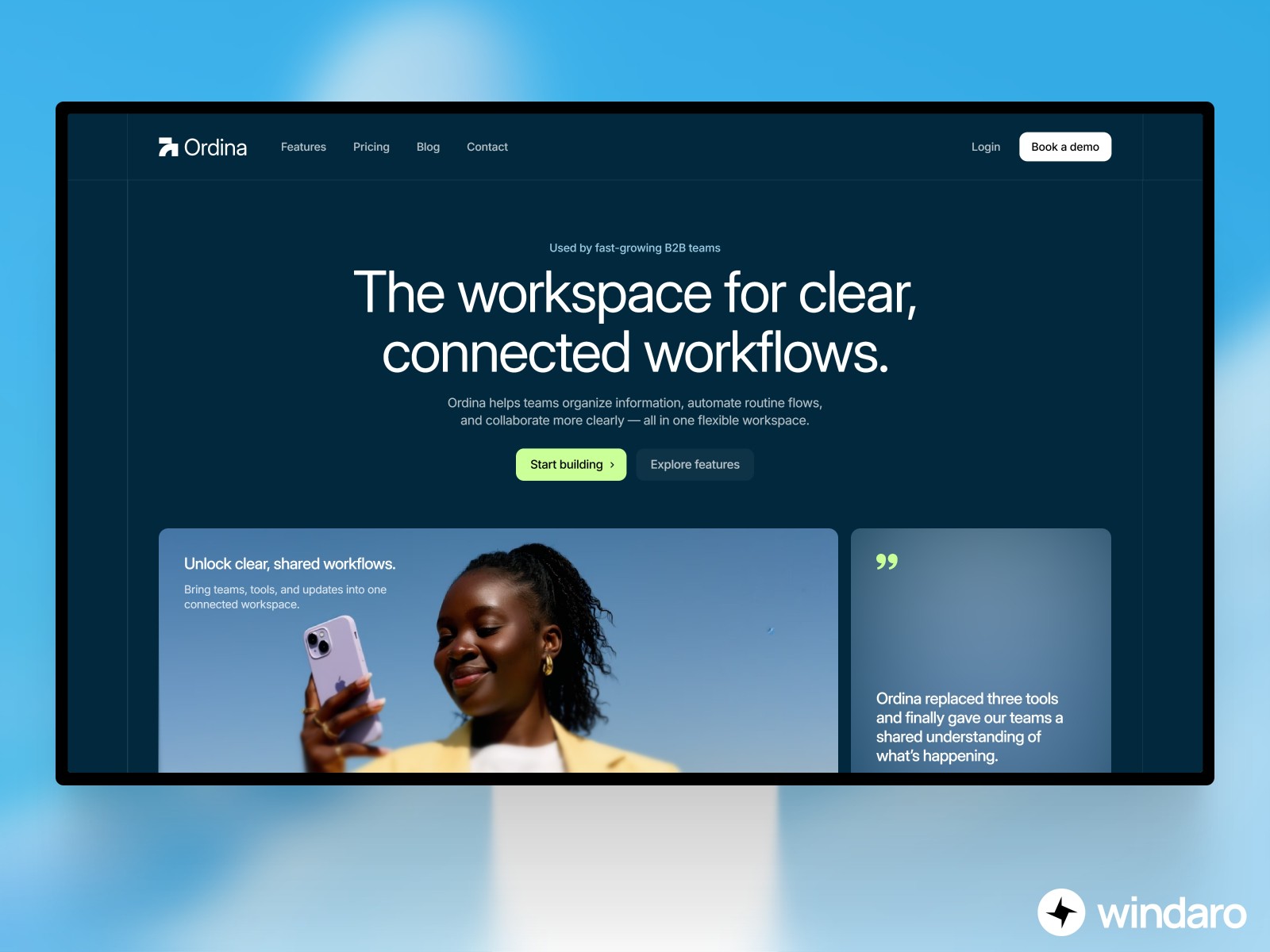
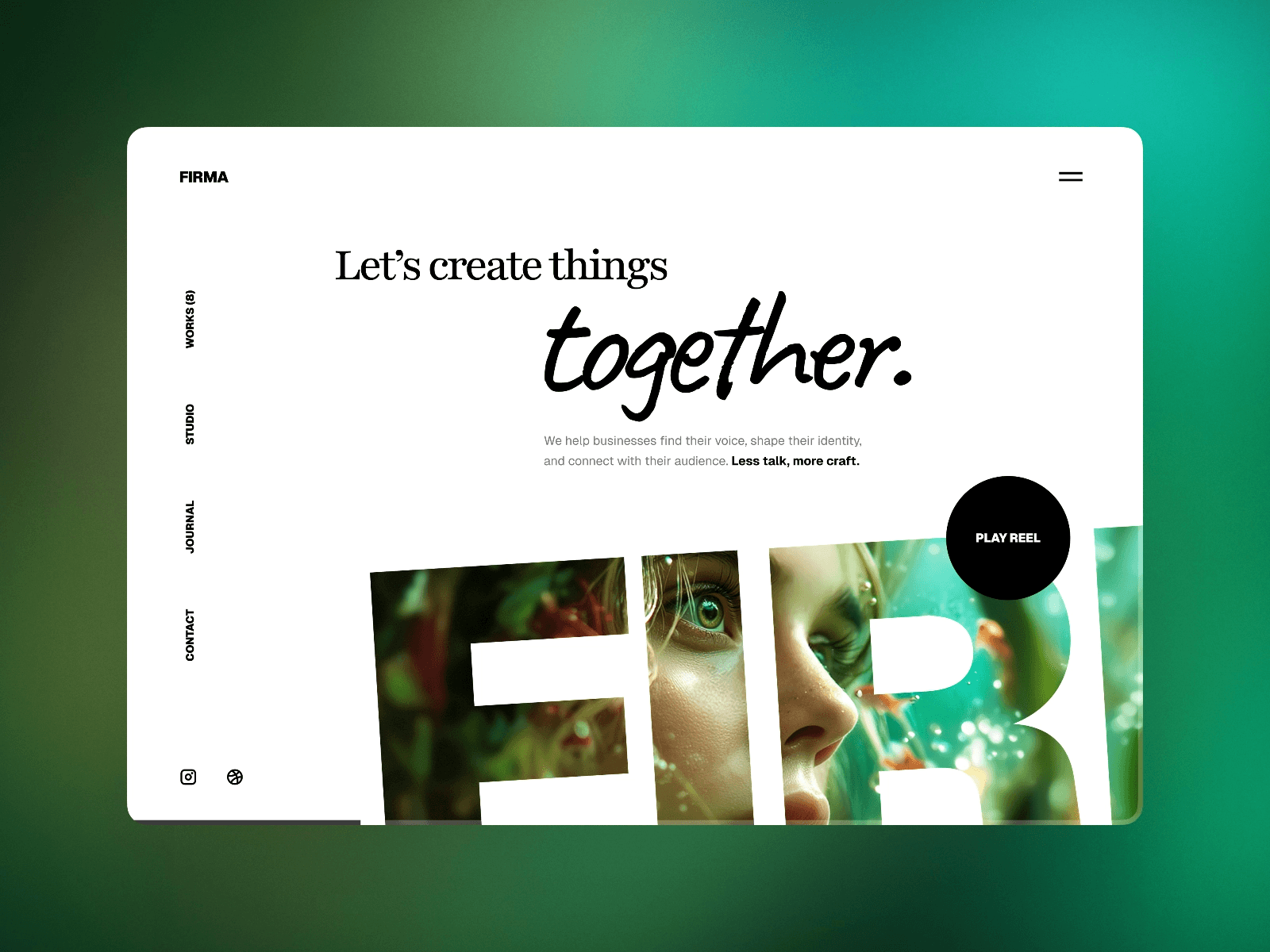
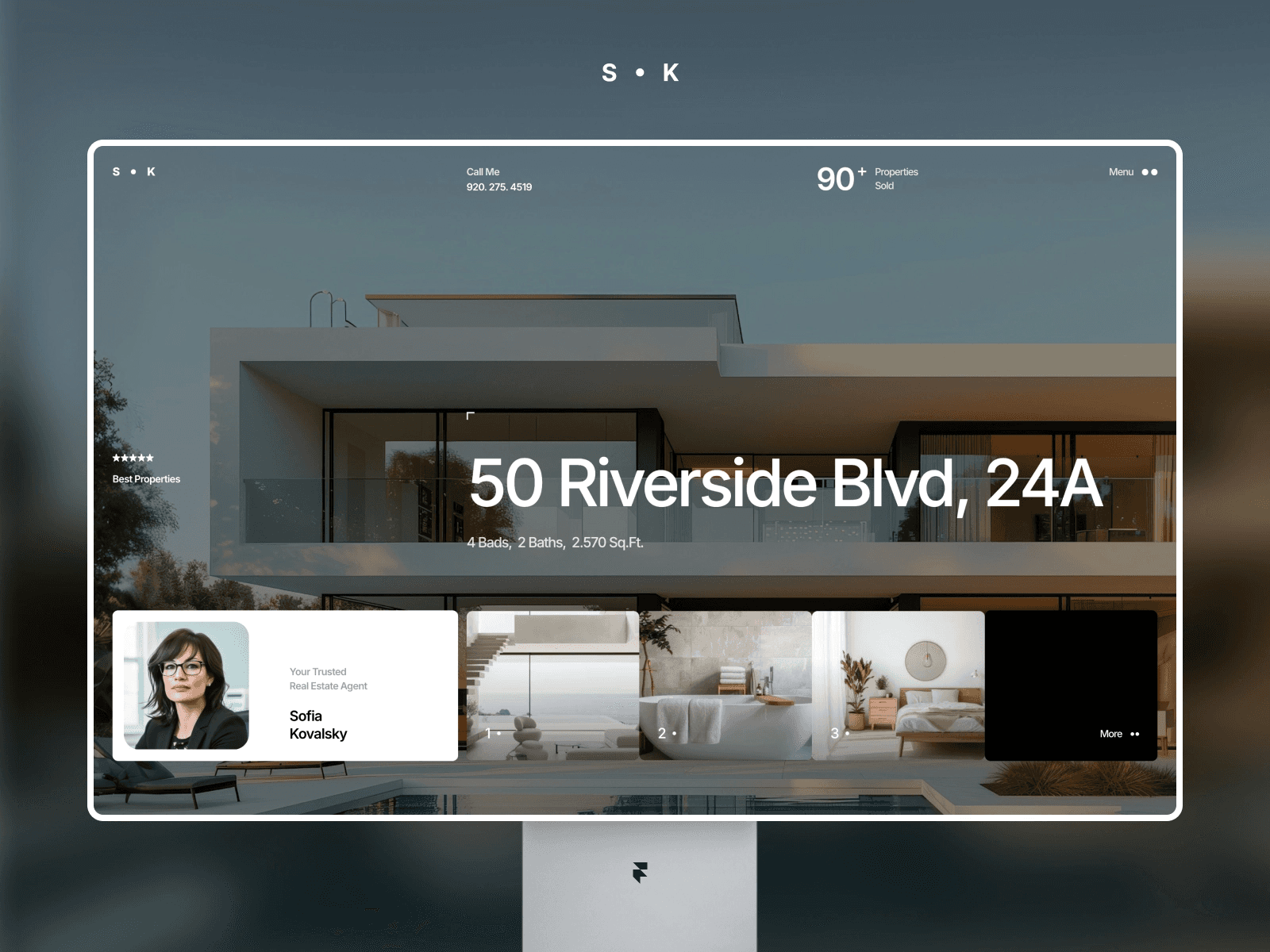
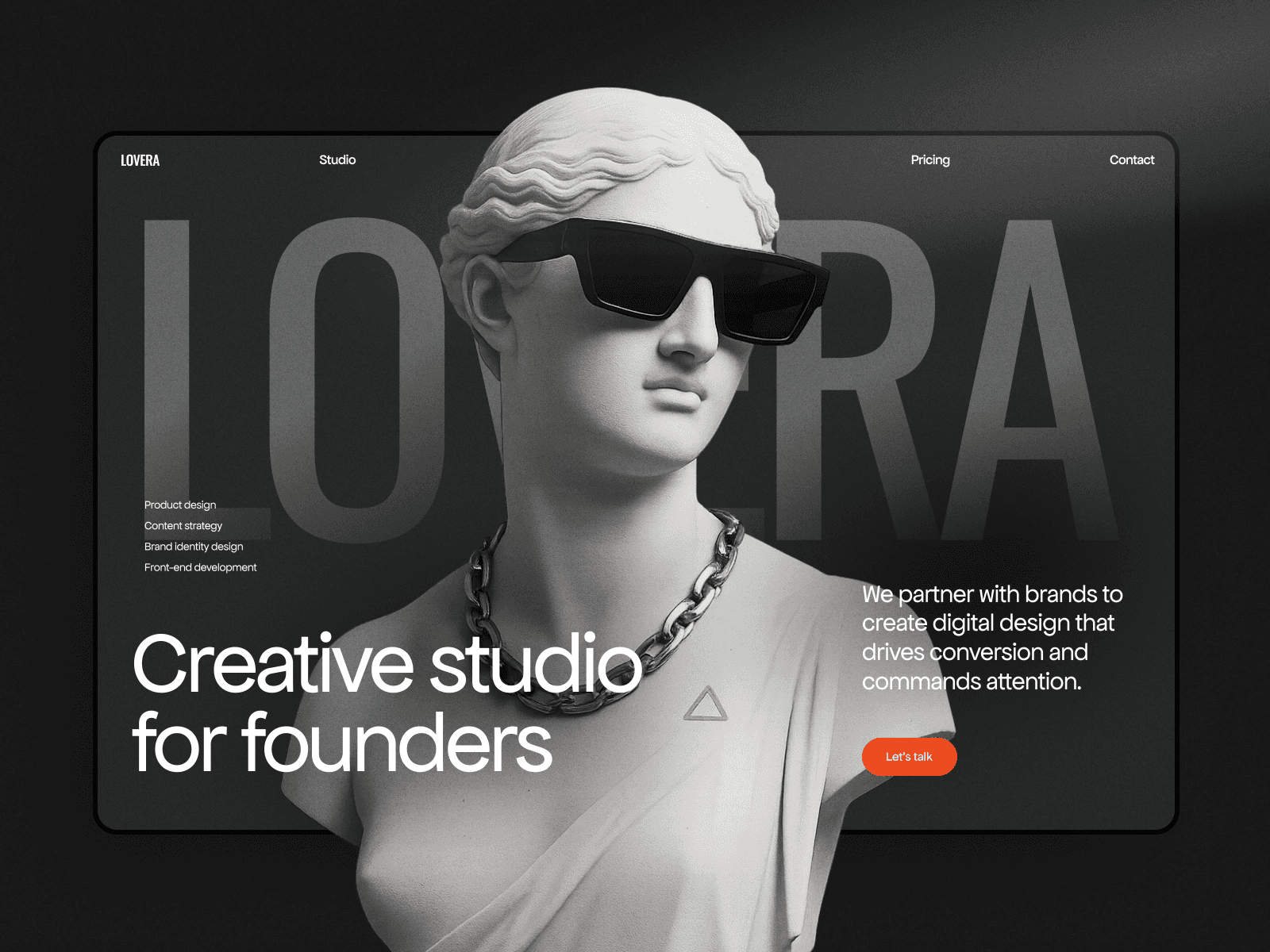
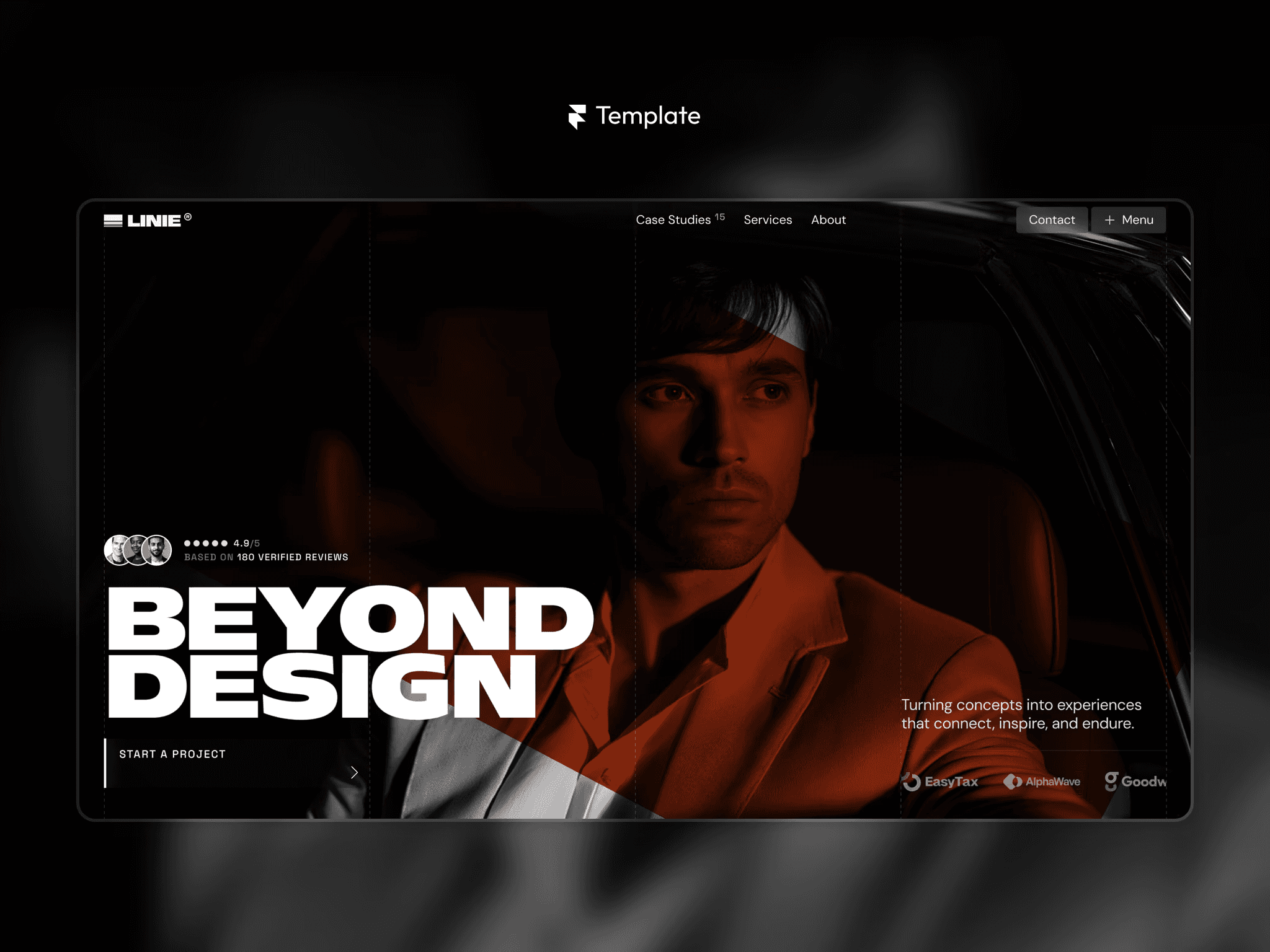
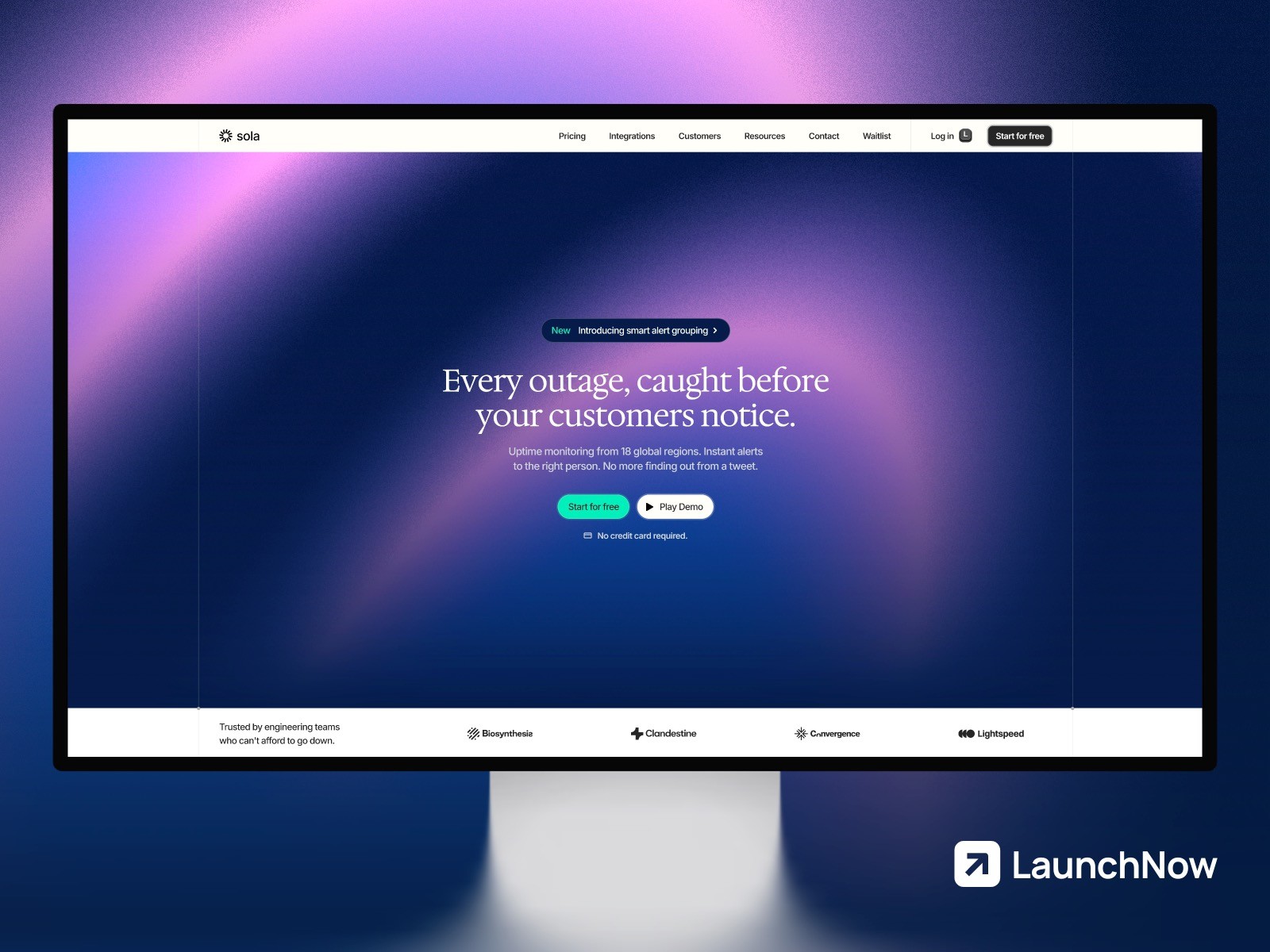
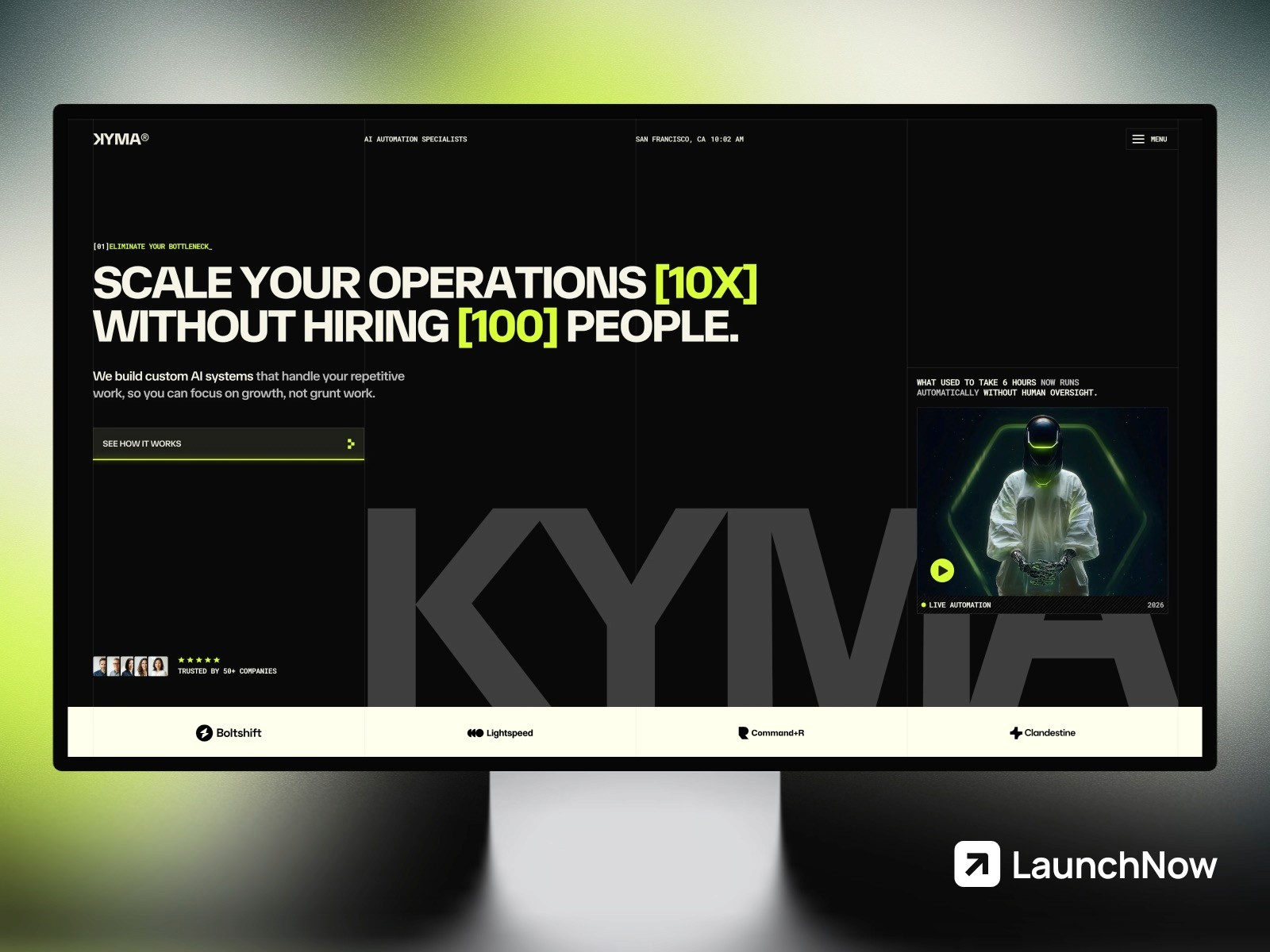
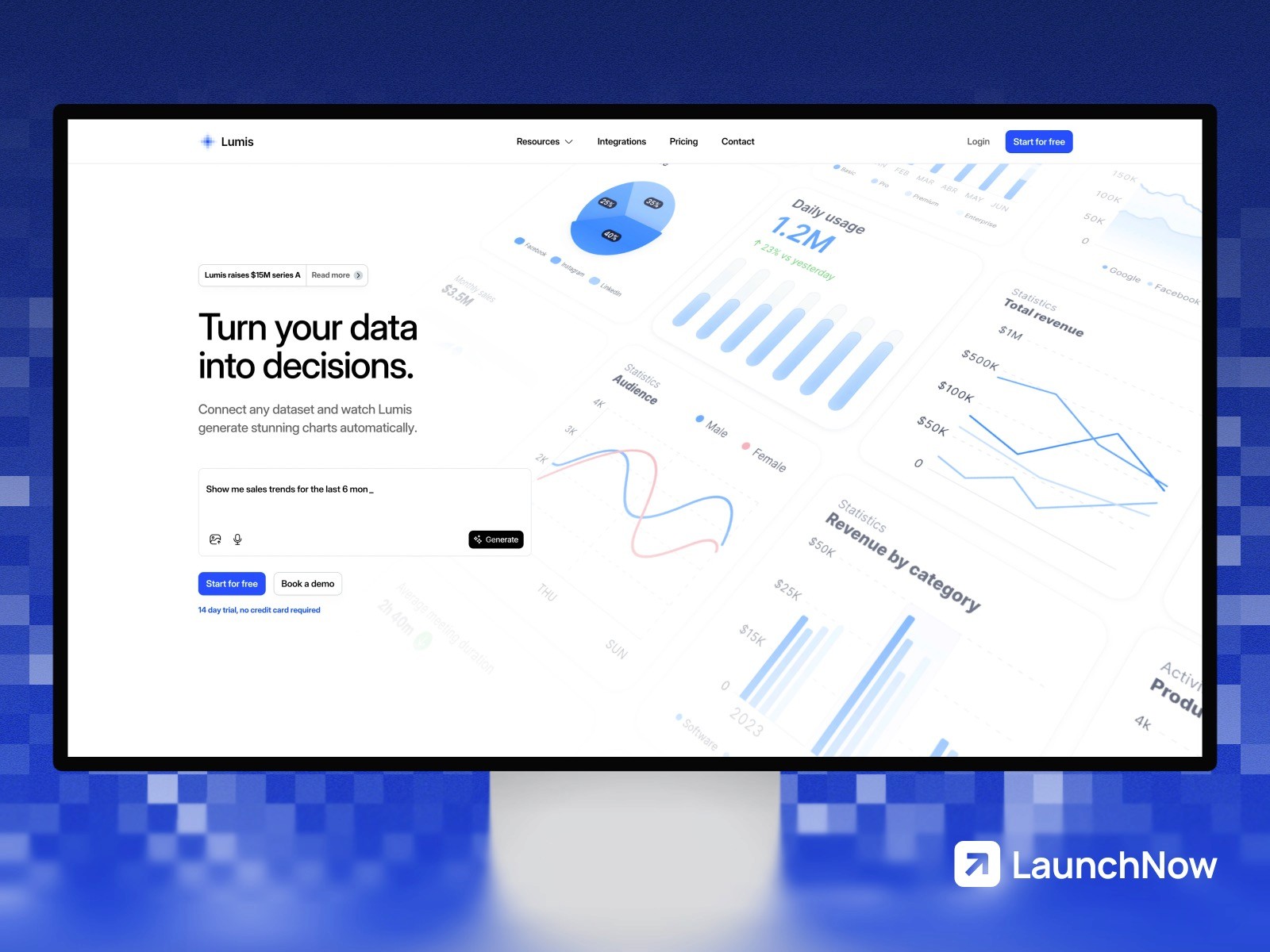
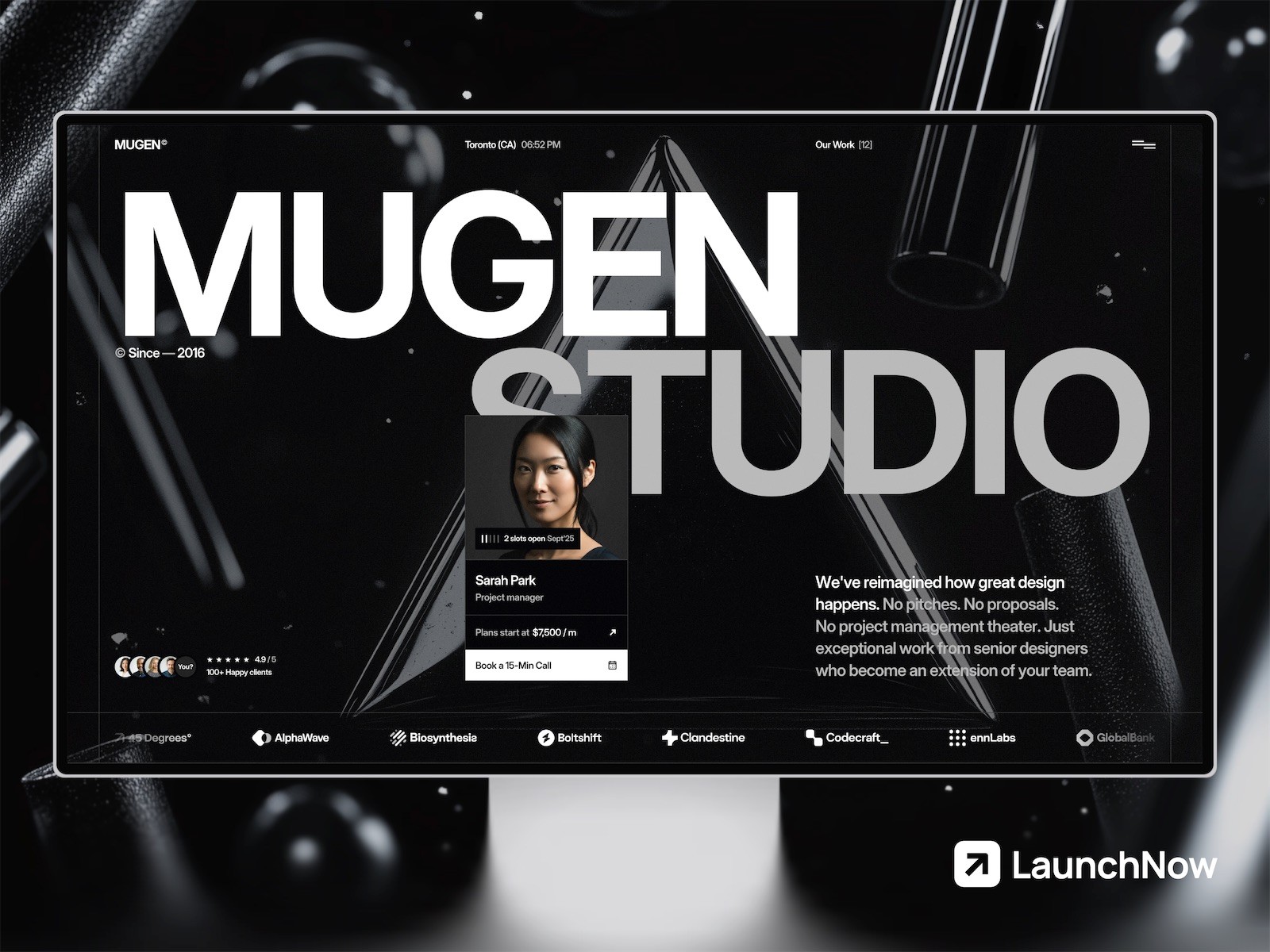
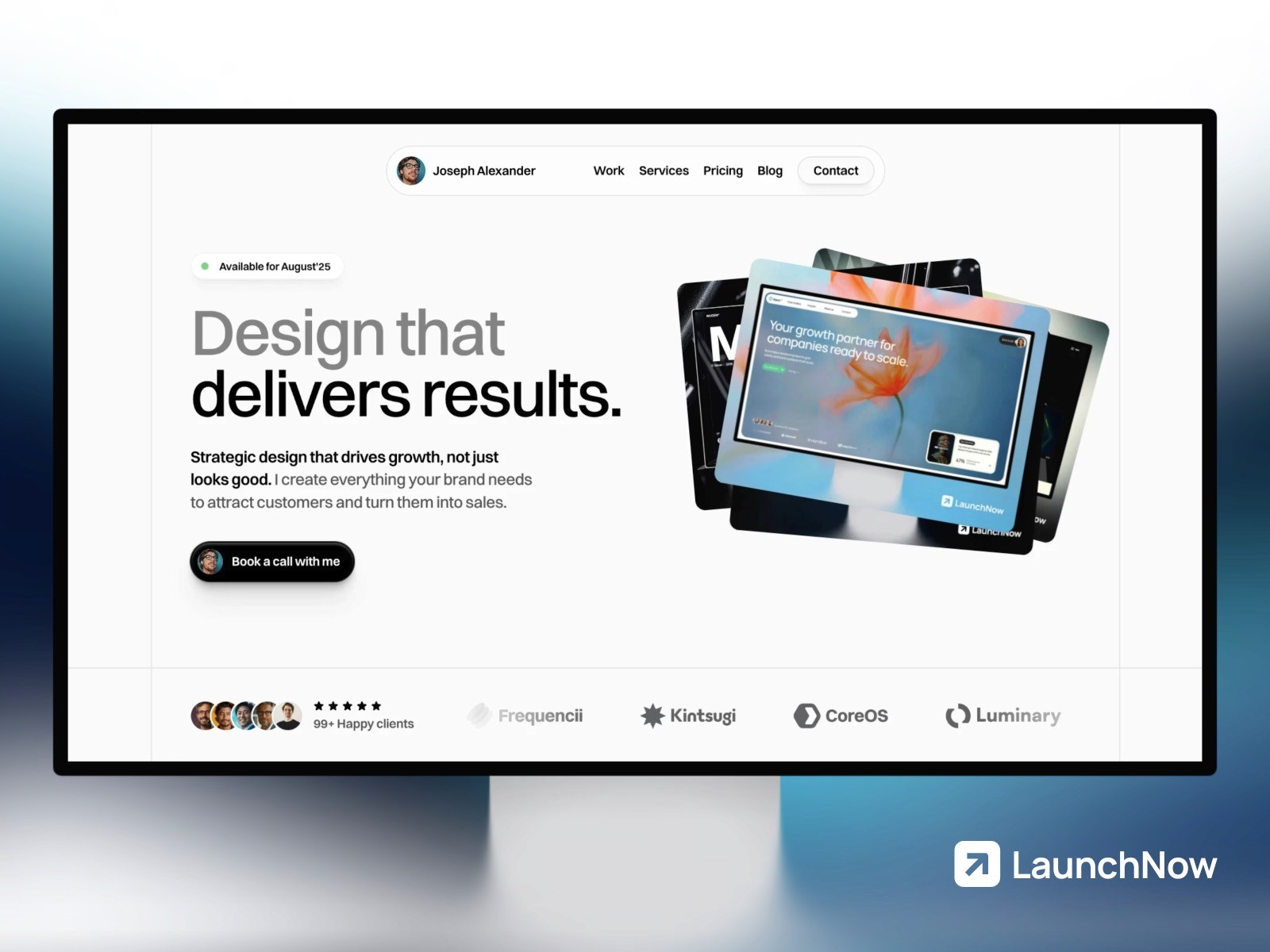
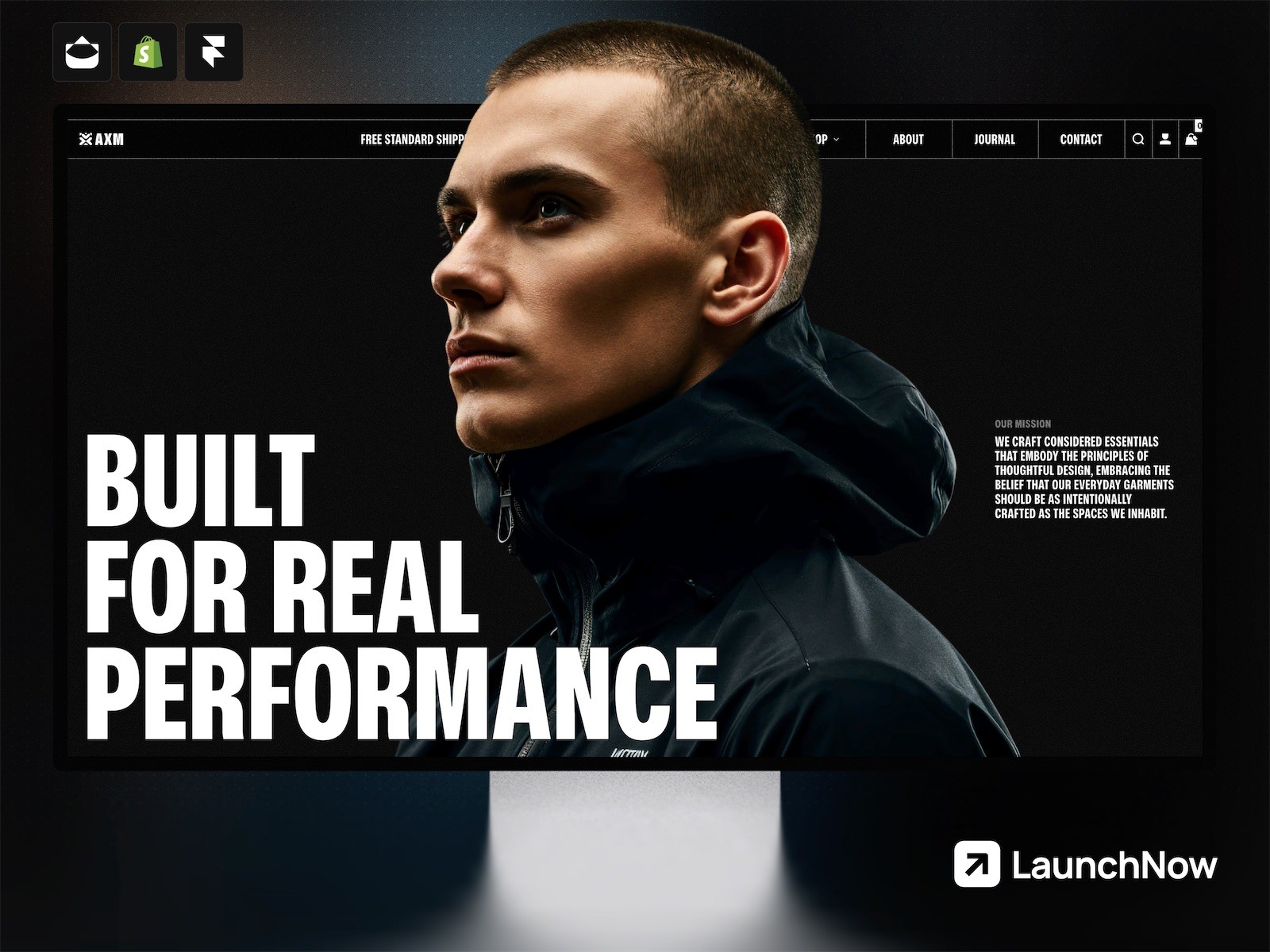
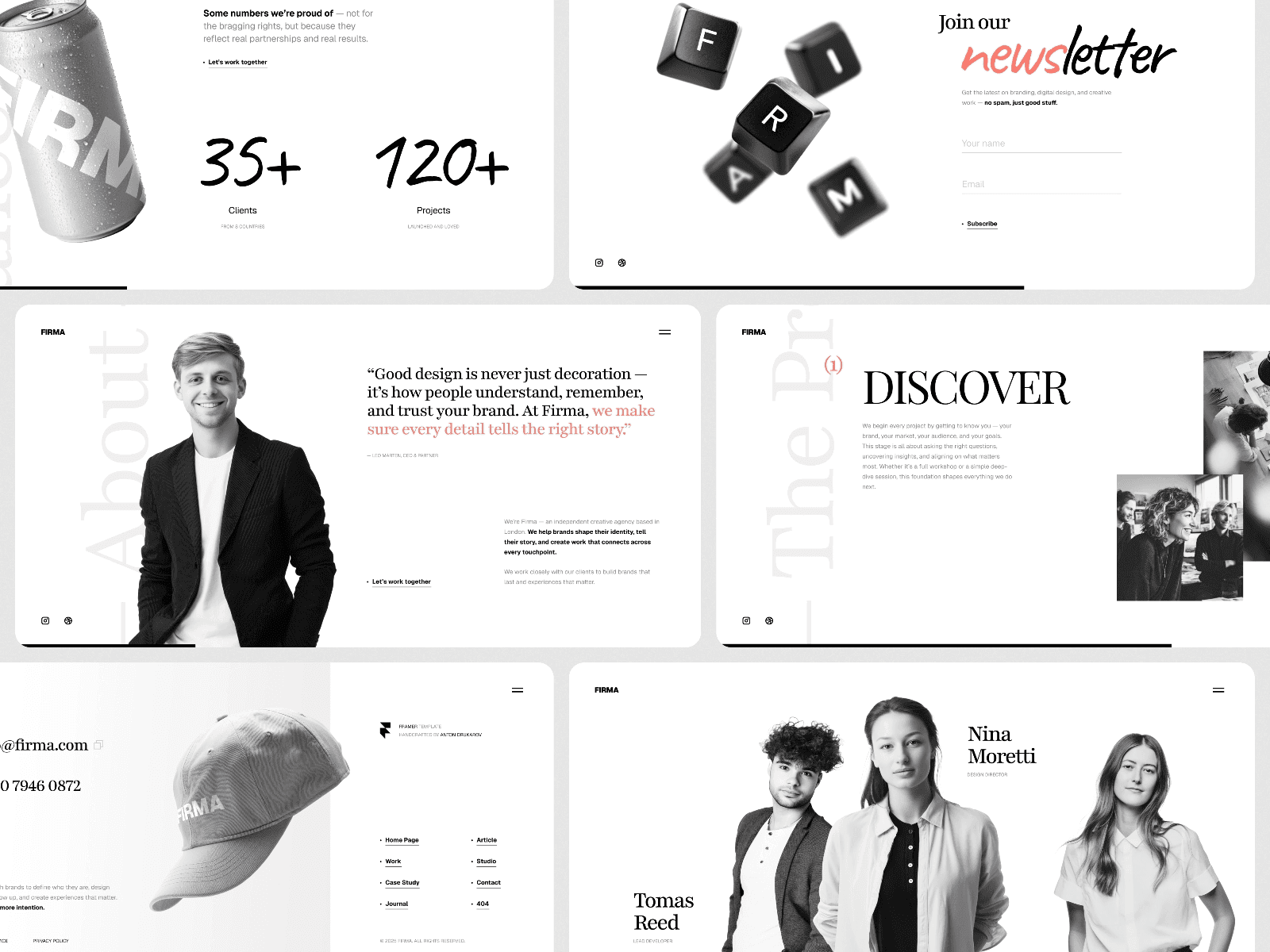
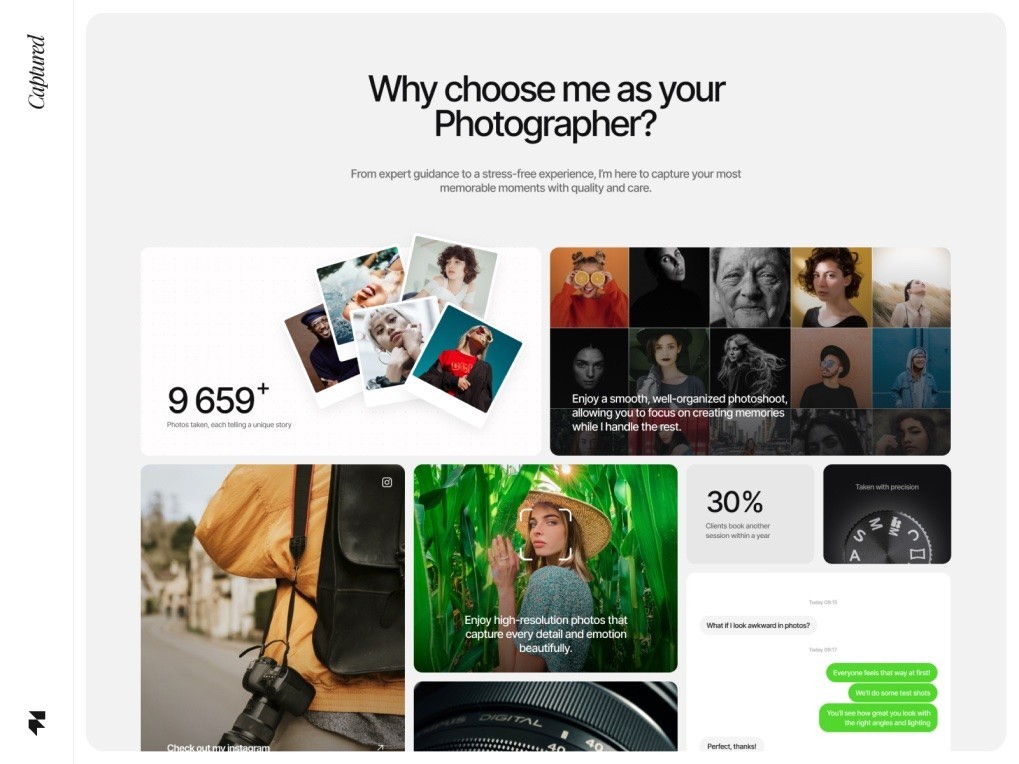
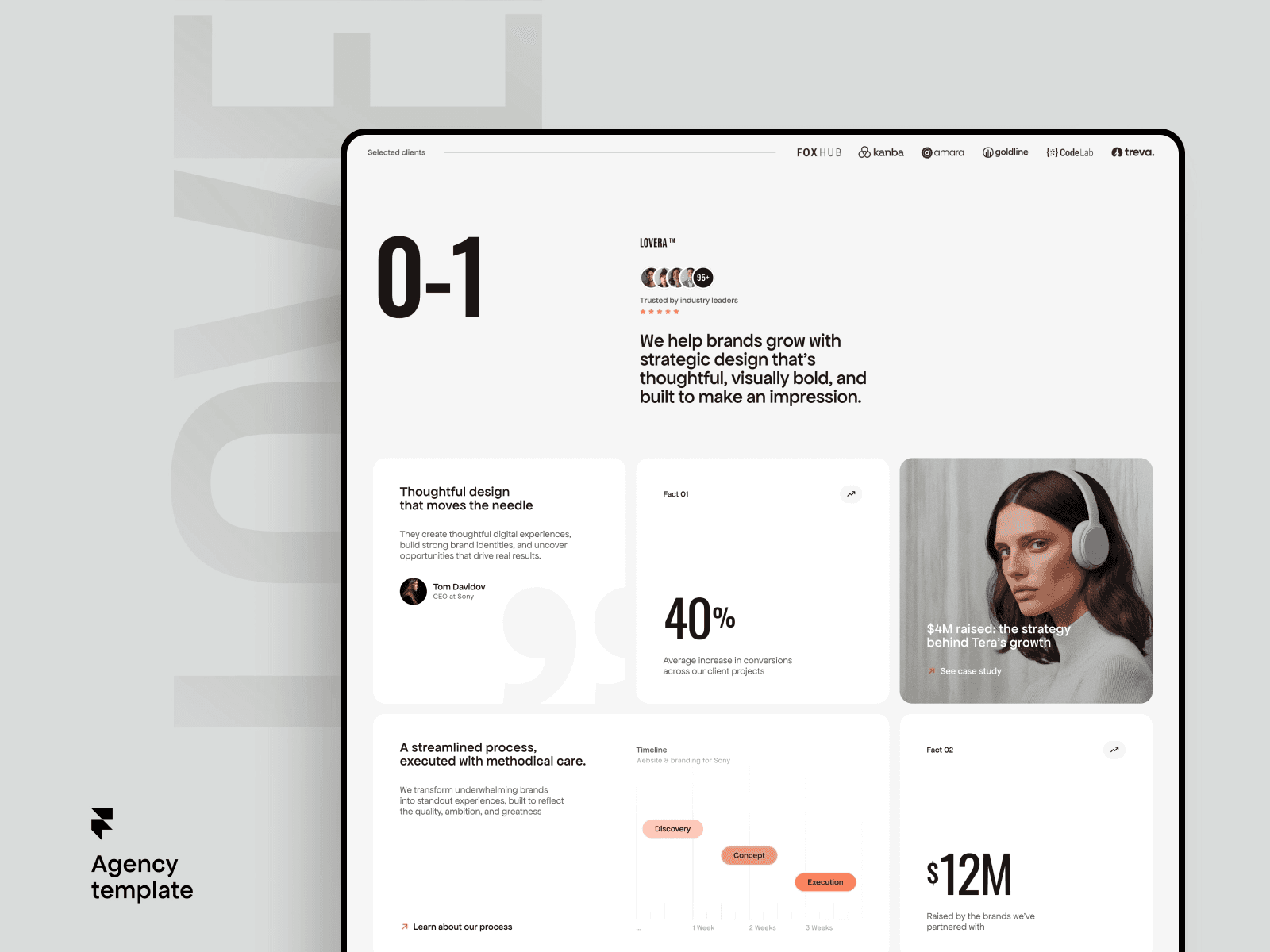
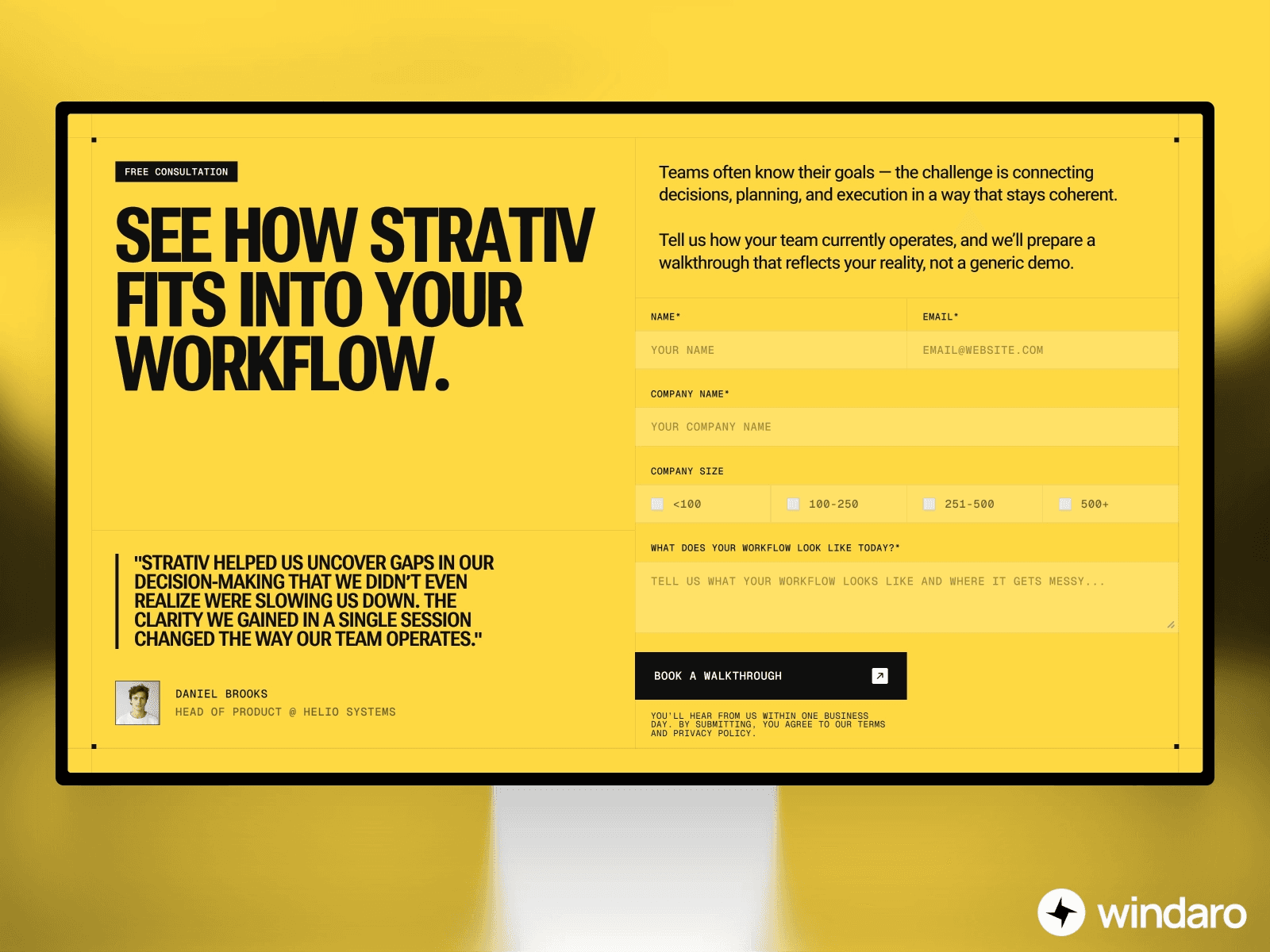
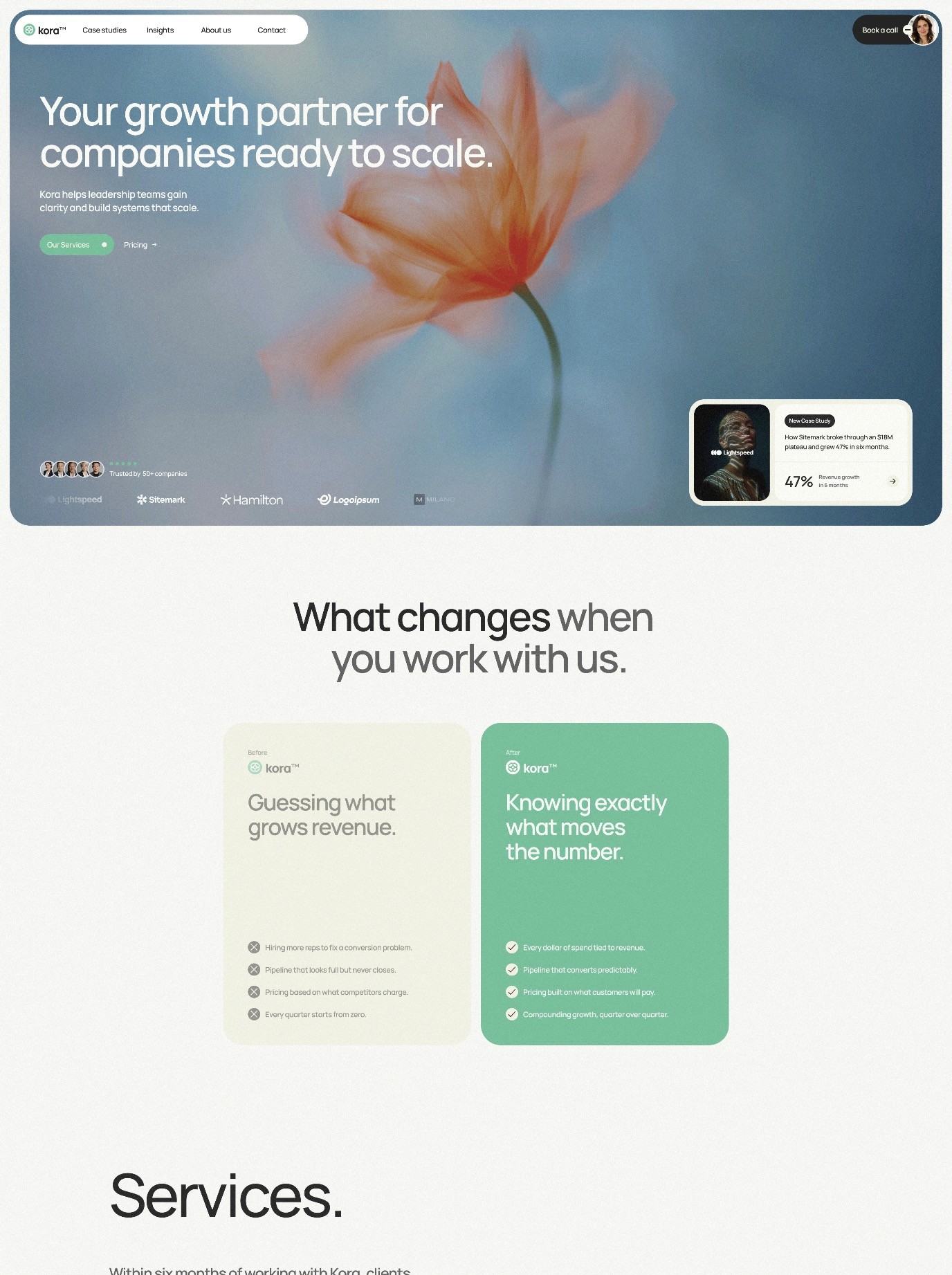
Why Templates Are Your Secret Weapon
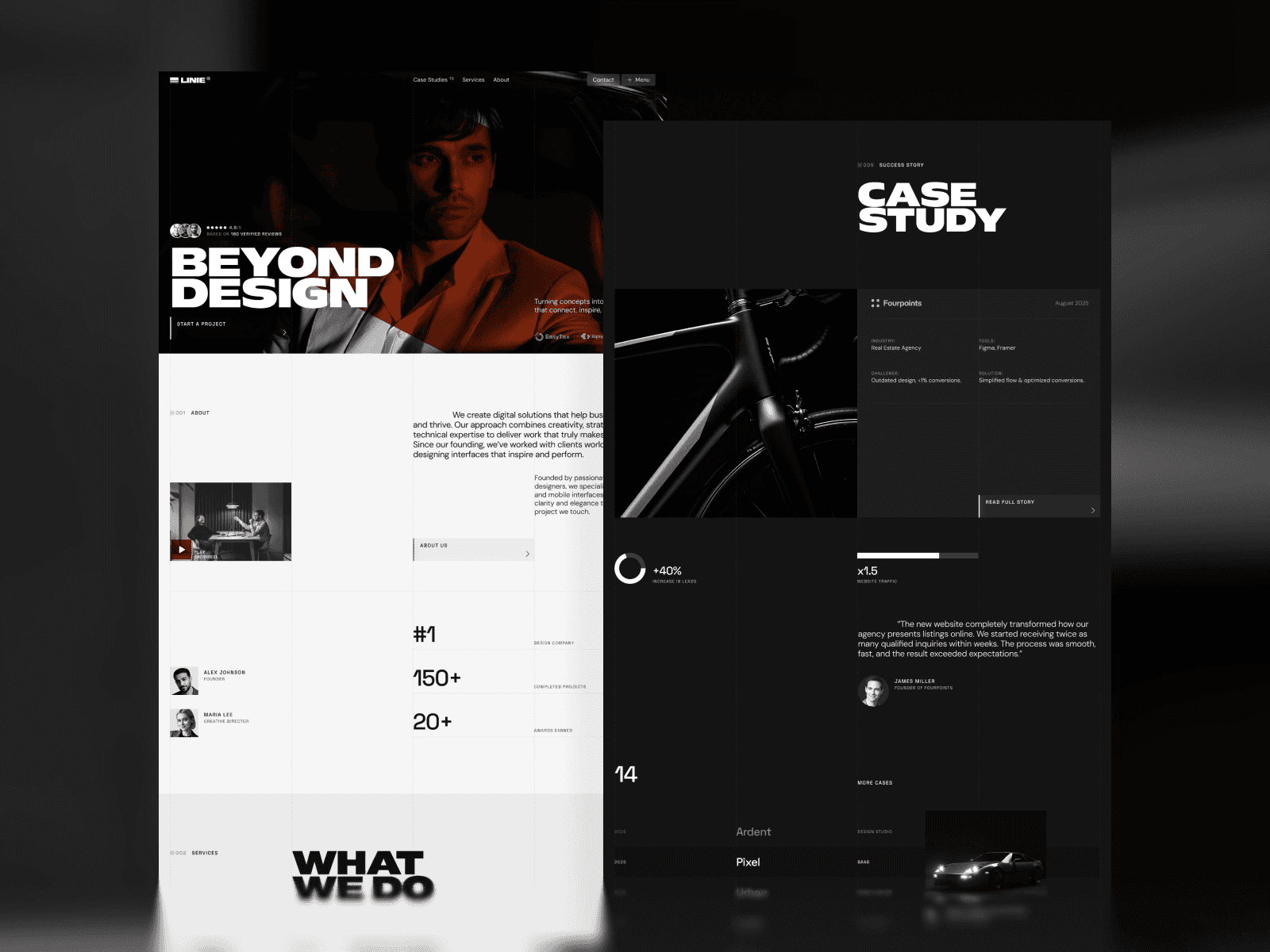
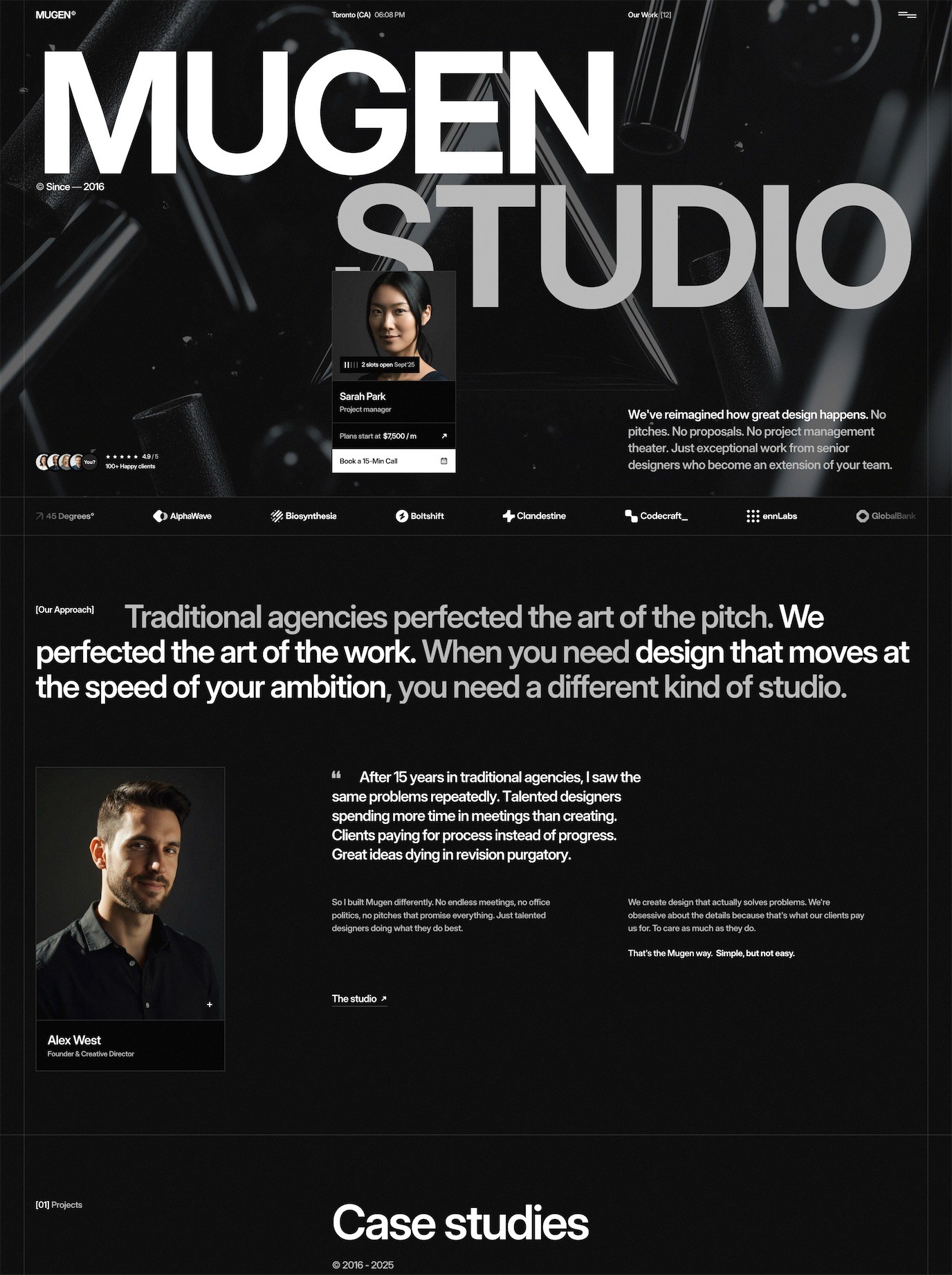
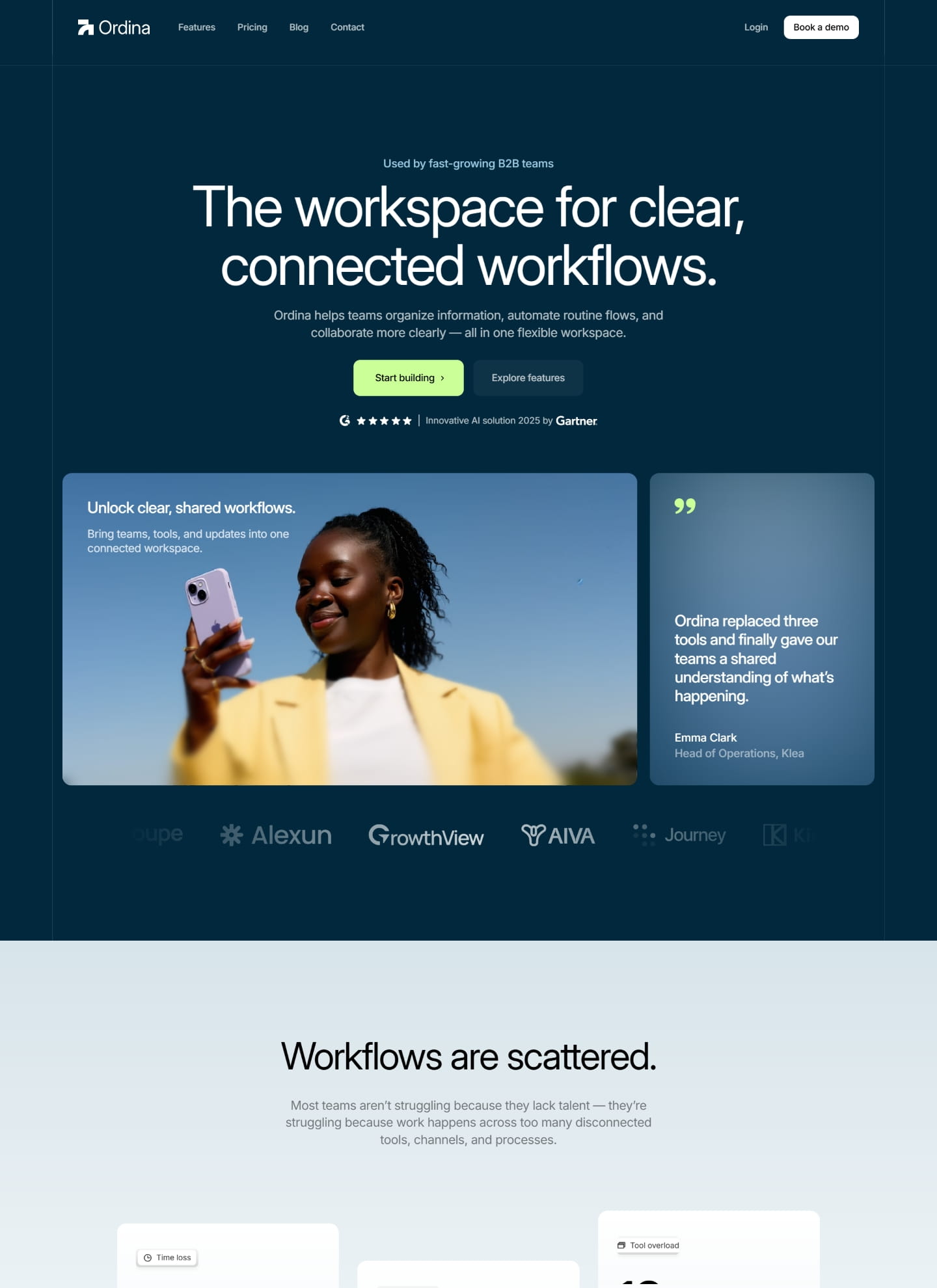
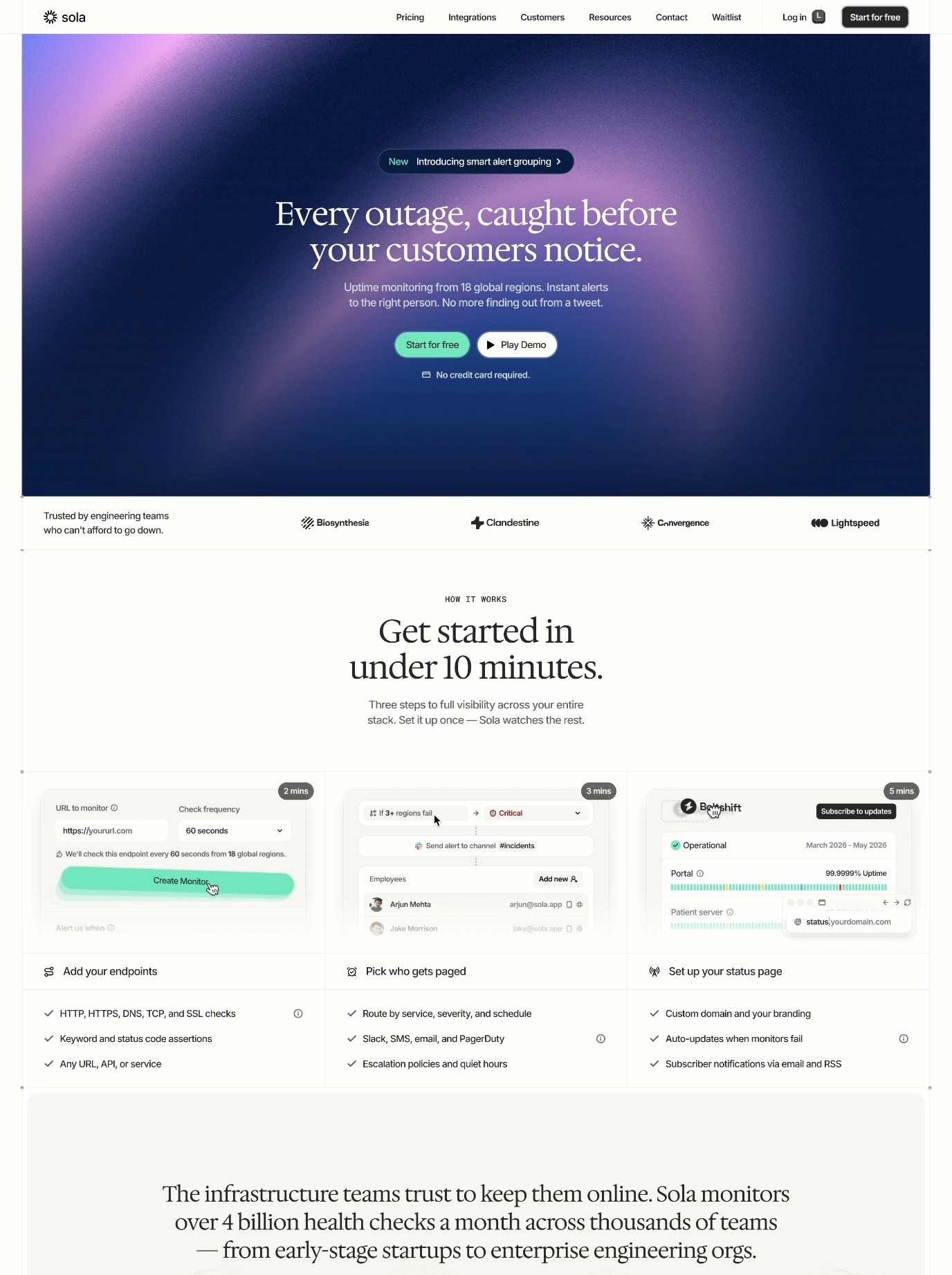
Starting a new website doesn't have to mean building from scratch. Whether you're launching a portfolio, e-commerce site, or business landing page, choosing a Framer template is one of the smartest decisions you can make in 2026. But here's what many people don't realize: using a template doesn't mean sacrificing creative control or ending up with a generic-looking site.
Framer templates provide a professional foundation that's already optimized for performance, responsiveness, and user experience. More importantly, Framer's visual editor gives you complete freedom to customize every aspect of your design. You're not locked into preset layouts or limited by coded constraints. Instead, you get the best of both worlds: a head start with a professional design system, combined with unlimited flexibility to make it truly yours.
In this guide, we'll walk you through the entire process of customizing a Framer template, from selecting the right starting point to publishing your fully optimized site. By the end, you'll understand how to leverage Framer's powerful tools to create a unique, high-performing website that represents your brand perfectly.
Step 1: Choosing the Right Template
Before you start customizing, you need to select a template that aligns with your vision and goals. The right template saves you countless hours of work and provides a solid foundation for edit Framer template tasks ahead.
What to Look For in a Framer Template
Structure and Layout: Examine the template's overall structure. Does it include sections you'll actually use? Look for flexible components like hero sections, feature blocks, testimonials, pricing tables, and footer areas. A well-structured template should have clear visual hierarchy and logical content flow.
CMS Support: If you plan to add dynamic content (blog posts, products, portfolio items), verify that the template includes Framer CMS integration. This feature lets you manage content directly in the Framer interface without touching code. Many premium templates come pre-configured with CMS collections, making content management seamless.
Responsive Design: Modern templates in Framer are built mobile-first, but double-check that all breakpoints are properly configured. You'll want clean layouts on desktop, tablet, and mobile devices without custom coding required. This is especially important if you prioritize mobile-first design.
Feature Completeness: Does the template include common features you'll need? Look for contact forms, navigation menus, image galleries, and animation effects. Premium templates typically offer more sophisticated features out of the box, allowing you to dive straight into Framer template customization rather than building functionality from scratch.
Design Flexibility: Choose a template with a cohesive but adaptable design system. Look for color variables, typography scales, and component variations that you can customize to match your brand. Templates built with proper design tokens make rebranding much faster.
When comparing options, consider checking out free vs premium templates to understand the differences in quality, support, and features.
Step 2: Understanding the Framer Editor
Once you've selected your template, it's time to familiarize yourself with Framer's interface. The visual editor is intuitive, but understanding its core components will speed up your customization work significantly.
The Layers Panel
The Layers panel on the left side of your screen shows your entire design hierarchy. It displays every element on your page, organized in a tree structure that reflects how components nest together. This is where you select elements to edit, understand how sections are organized, and manage complex layouts. You can collapse or expand groups to focus on specific areas.
Properties Panel
The right-side Properties panel is where all the magic happens during customization. When you select any element, its properties appear here: dimensions (width and height), positioning, padding, margins, rotation, opacity, fills (colors), strokes (borders), shadows, and effects. For text elements, you'll find typography options like font, size, weight, line height, and letter spacing. Understanding these properties is essential for effective Framer template customization.
Breakpoints for Responsive Design
Framer includes a breakpoints system that lets you design for different screen sizes. By default, Framer shows your design at desktop size, but you can preview and adjust layouts for tablet and mobile. You'll see a breakpoint selector at the bottom of the canvas. Click on it to switch between device sizes and ensure your customizations look perfect on all screens. This is critical for mobile optimization.
The Inspector and Code Panel
For advanced customizations, Framer's Inspector shows CSS-like properties and code snippets. If you're comfortable with code, you can directly modify values or add custom interactions using Framer's interaction builder. Don't worry if you're not a coder—Framer's visual tools handle 95% of customization tasks without any code.
Step 3: Customizing Colors, Fonts, and Branding
The fastest way to make a template feel like yours is to apply your brand identity. Fortunately, Framer makes this process streamlined and systematic.
Swapping Brand Colors
Professional templates use color variables or design tokens. This means changing a primary color automatically updates every element using that color throughout the entire site. Look for your template's color section in the Assets panel. You'll typically find primary, secondary, accent, and neutral color sets. Simply click on a color swatch and choose your brand colors from the color picker. This single action can transform the entire look of your site in seconds.
If the template doesn't use color variables, you can still customize colors by selecting individual elements. However, this approach is more time-consuming if you want consistency across your site.
Updating Typography
Fonts are another critical branding element. Framer supports Google Fonts and custom font uploads. Most templates come with 2-4 carefully selected fonts. To change them, click on any text element and use the font selector in the Properties panel. You can change individual elements or update the entire site by modifying component styles.
Pro tip: Stick with no more than 3 fonts total (one for headings, one for body text, one for accents). This maintains visual hierarchy and professionalism while making your customization process faster.
Logo and Image Swap
Templates include placeholder images and logos. Replace these with your own by clicking on the image element and selecting "Replace Image" from the context menu. Upload your logo, hero images, and product photos. Framer automatically handles image optimization, so you don't need to worry about file sizes or compression.
Step 4: Editing Content and Layout
Now that your branding is in place, it's time to customize the actual content and layout structure.
Text Content Updates
Double-click any text element to edit its content directly. Replace placeholder headlines, body copy, button labels, and navigation items with your own messaging. Pay attention to text hierarchy—don't make all text the same size or weight. Maintain the visual structure the template designer created, adjusting only the content itself.
Reordering and Removing Sections
Framer's Layers panel makes it easy to reorganize sections. You can drag sections up or down in the hierarchy to change their order on the page. Want to move your testimonials section above your pricing? Just drag it in the Layers panel, and it updates instantly on your canvas.
To remove sections you don't need, right-click them in the Layers panel and select "Delete." The template becomes a starting point, not a constraint. Take only what serves your needs.
Adding New Content Blocks
If you need additional sections, Framer makes this straightforward. You can duplicate existing sections (right-click and "Duplicate"), modify them for your new content, or insert new components from the Components panel. Templates often include pre-built components for common sections—use these as building blocks for expanding your site.
Step 5: Working With the CMS
One of Framer's most powerful features is its integrated CMS (Content Management System). If your template includes CMS collections, you can manage dynamic content without touching code.
Understanding CMS Collections
CMS collections are databases for your content. A blog template might have a "Blog Posts" collection with fields for title, excerpt, featured image, author, publication date, and body content. An e-commerce template might have a "Products" collection with fields for product name, description, price, images, and specifications.
Connecting Dynamic Content
To use CMS content on your pages, you create CMS-bound components. This means a blog post component displays data from your Blog Posts collection. When you add a new blog post in the CMS, it automatically appears on your site without any template editing. This is the key benefit of Framer template customization for content-heavy sites.
Creating and Editing Collections
In the CMS tab, you can create custom collections or edit existing ones. Add or remove fields based on your specific needs. You don't need technical knowledge—the interface is visual and intuitive. Once your collection structure is defined, you or your team can add items directly in the CMS interface.
If your template doesn't include pre-built CMS integration, you can still add it yourself. Framer's CMS is flexible enough to accommodate nearly any content type you can imagine.
Step 6: Adding Animations and Interactions
Templates often include basic animations and transitions, but Framer allows you to add complex, engaging animations that enhance user experience.
Scroll Animations
Use scroll triggers to animate elements as users scroll down the page. Images can fade in, text can slide from the side, and elements can scale up. These effects create a dynamic, modern feel without slowing down your site. In Framer, simply select an element, go to the Interactions panel, and set "On Scroll Into View" triggers with animation properties.
Hover States and Click Interactions
Make buttons, links, and cards interactive by adding hover effects. Change colors, scale elements up slightly, add shadows, or show additional information on hover. These micro-interactions improve user experience and guide visitors toward your calls-to-action.
Click interactions can open modals, navigate to sections, toggle content visibility, or trigger animations. These interactions don't require code—Framer's interaction builder is completely visual.
Page Transitions
Create smooth transitions between pages with exit and entrance animations. A page might fade out as users click a link, and the new page fades in. This creates a cohesive, polished browsing experience.
Remember: animations should enhance, not distract. Use them purposefully to guide attention or provide visual feedback. Excessive animations can slow down your site and frustrate visitors.
Step 7: Mobile Optimization
A well-designed template is responsive by default, but you should review and optimize for mobile devices as part of your customization process.
Testing Responsive Breakpoints
Switch to tablet and mobile breakpoints at the bottom of your Framer canvas. Review how your content reflows at each size. Text should remain readable, images should scale appropriately, and navigation should be touch-friendly. Most templates handle this automatically, but you might need to adjust specific elements for smaller screens.
Optimizing Navigation for Mobile
Desktop navigation (horizontal menus) doesn't work well on mobile. Check that your template includes a mobile-optimized navigation solution, like a hamburger menu. Customize the mobile menu to include only essential navigation items and ensure the toggle button is clearly visible and easy to tap.
Font and Spacing Adjustments
What looks great at desktop size might be too large or too small on mobile. Review heading sizes, body text, padding, and margins on mobile breakpoints. You want to maintain visual hierarchy while maximizing screen real estate on smaller devices.
Touch-Friendly Interactive Elements
Buttons, links, and form inputs should be at least 44 pixels tall for easy tapping on mobile devices. Ensure adequate spacing between clickable elements so users don't accidentally tap the wrong button. These details significantly improve mobile user experience.
For deeper insights on designing for mobile, check out our guide on mobile-first design principles.
Step 8: SEO Setup Before Launch
Before publishing your customized site, configure essential SEO elements. Framer makes this straightforward in the site settings and page-level options.
Meta Titles and Descriptions
Every page should have a unique meta title (50-60 characters) and description (140-160 characters). These appear in search results and significantly impact click-through rates. Include your target keyword naturally in both elements. For your home page, include your primary keyword like "customize Framer template" or related terms in your meta description.
Open Graph Tags
When users share your site on social media, Open Graph tags control the preview image, title, and description that appear. Set a high-quality featured image and compelling description for each page. Framer handles this in the page settings—just fill in the fields provided.
Sitemap and Robots.txt
Framer automatically generates a sitemap of all your pages and creates a robots.txt file that instructs search engines how to crawl your site. You don't need to do anything here—it's handled automatically. However, ensure you're not blocking important pages in your SEO settings.
Structured Data and Schema Markup
For advanced SEO, you can add schema markup to help search engines understand your content. Framer supports custom code injection, allowing you to add JSON-LD structured data. This is especially useful for local businesses, articles, products, and organizations.
For comprehensive SEO guidance specific to Framer, reference our Framer SEO guide.
Performance and Core Web Vitals
Framer automatically optimizes your site for speed, but you can further improve performance. Compress images before uploading, avoid embedding heavy third-party scripts, and keep animations lightweight. Fast-loading sites rank better in search results and convert better. Explore our performance optimization tips for additional strategies.
Step 9: Publishing and Going Live
With customization complete and SEO configured, you're ready to publish your site.
Framer's Built-in Hosting
Framer includes free hosting for your site at a Framer subdomain (yourname.framer.website). This is perfect for getting started quickly, and your site is automatically optimized and secured with HTTPS.
Connecting a Custom Domain
To brand your site professionally, connect your own custom domain. Framer makes this easy—go to Site Settings, select Custom Domain, and enter your domain. You'll update your domain's DNS settings to point to Framer's servers. The process typically takes 10-30 minutes to fully propagate.
Pre-Launch Checklist
Before hitting publish, verify that:
All placeholder content is replaced with real content
All links (internal and external) work correctly
Contact forms are set up and functional
Mobile design looks good across all screen sizes
Meta titles, descriptions, and Open Graph tags are configured
Analytics tracking (Google Analytics, etc.) is installed
Favicon is uploaded and visible
No broken images or missing assets
Form submissions send to your email address
CMS content is complete and reviewed
Publishing Your Site
When you're ready, click the Publish button in the top right of Framer. Your site goes live immediately. You can continue making updates anytime—changes publish instantly without downtime.
Measuring Performance and Optimization
After launch, continue optimizing based on data. Set up Google Analytics to track visitor behavior, page views, and conversion metrics. Monitor your site's performance using Google Search Console to see which keywords drive traffic and where you rank in search results.
Use tools like PageSpeed Insights to evaluate performance metrics. Framer's defaults are excellent, but optimization is ongoing. If you notice high bounce rates on specific pages, consider improving copywriting or calls-to-action. If visitors aren't converting, review our guide on conversion rate optimization for Framer sites.
Common Customization Mistakes to Avoid
Learning from others' mistakes will accelerate your success. Here are pitfalls to avoid when customizing a Framer template:
Ignoring Mobile Design
Don't assume desktop-optimized designs automatically work on mobile. Always test your customizations on actual mobile devices or use Framer's breakpoint preview feature. Poor mobile experience kills conversions.
Over-Customizing the Design System
Resist the urge to customize every element differently. Templates are designed with cohesion in mind. The more you deviate from the design system, the more amateurish your site looks. Limit your changes to colors, fonts, and layout—not style fundamentals.
Adding Too Many Animations
Animations are fun, but excessive animations slow down your site and annoy users. Use animations purposefully to guide attention or provide feedback. Less is usually more.
Neglecting SEO During Customization
Don't leave SEO for last. As you customize content, think about keyword placement in headings and body text. Add descriptive alt text to images. These elements are easier to optimize as you work, rather than retrofitting SEO afterward.
Using Low-Quality Images
Replace template placeholder images immediately. Blurry or irrelevant images damage credibility. Invest in professional photography or use high-quality stock images that match your brand aesthetic.
Not Testing Forms and Interactions
Before publishing, thoroughly test every form, button, and interactive element. Submit test contact forms to ensure emails arrive. Click every link to verify it goes where intended. Users forgive small design quirks but not broken functionality.
Forgetting About CMS Updates
If your template includes CMS-connected pages (blogs, portfolios), set a schedule for regular content updates. Stale content hurts both user experience and search rankings. A blog published monthly looks better than one updated sporadically.
Conclusion: Your Customized Site is Just the Beginning
Customizing a Framer template is not about starting from scratch—it's about starting smart. You get the benefit of professional design, optimized performance, and built-in features, while maintaining complete creative control to make the site truly yours.
Throughout this guide, you've learned how to choose the right template, navigate Framer's powerful editor, apply your branding, optimize for mobile, configure SEO, and publish your site. These steps transform a generic template into a custom, high-performing website that represents your unique vision.
The beauty of Framer template customization is that it's both beginner-friendly and powerful. You can achieve professional results quickly without code, yet the platform scales with you as your skills grow. Whether you're launching your first website or building your tenth, Framer's visual editor and comprehensive feature set make how to use Framer templates straightforward and enjoyable.
Don't overthink the process. Start with a template that matches your vision, customize thoughtfully, and launch with confidence. Your audience cares about your content and the value you provide—a professionally designed, well-optimized Framer site is the perfect vehicle for delivering that value.
Ready to get started? Choose your template today and begin the customization process. Your site could be live within hours.